
AI powered | Anywhere to anywhere™
The Future of
Cross Border Commerce
Scale your global growth without complexity or risk. From intelligent product pricing to predictive compliance, enable the modern cross border OS.
300+
carriers
220+
markets
99%
delivery rate


Trusted by leading enterprise brands







Intelligence
Meet your agentic AI operator

Meet XB AI, your AI cross border agent
 Instant Expertise
Real-time answers and actionable recommendations for cross border problems
 Global Trade Intelligence
200+ country regulations and requirements at your fingertips
 Control Center
Effortlessly manage operations across FlavorCloud services through a conversational interface
Get instant, intelligent answers powered by FlavorCloud's deep domain expertise, network data, and AI-powered services.

End-to-End
Powered by Layers of Intelligence

Multi-Carrier Network
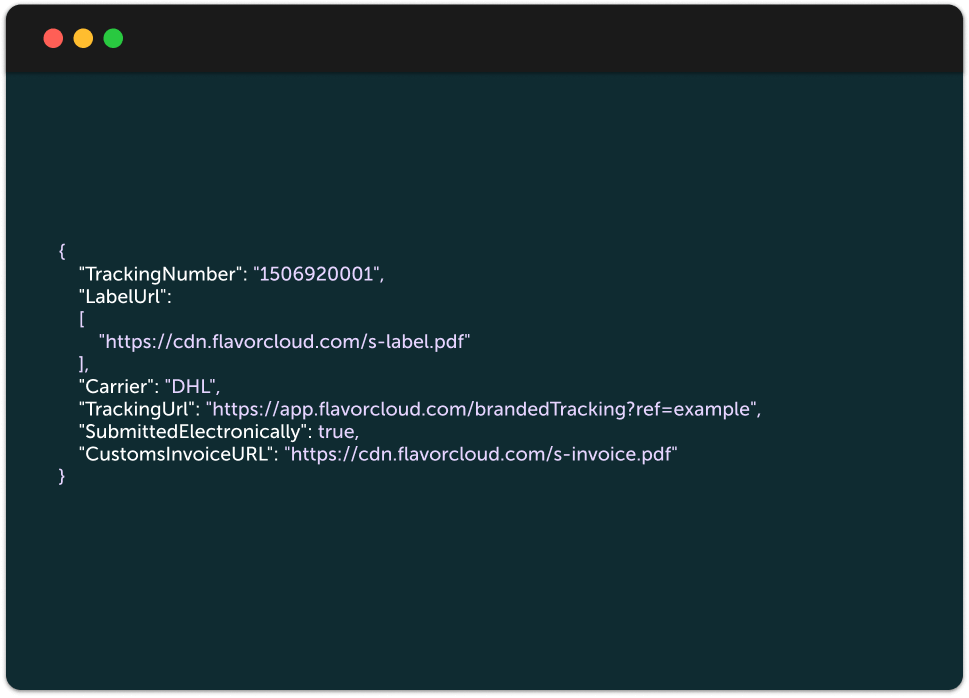
Intelligent algorithms optimize logistics in real-time with guaranteed DDP shipping, reducing costs and delivery times across 220+ global markets.

Trade
AI
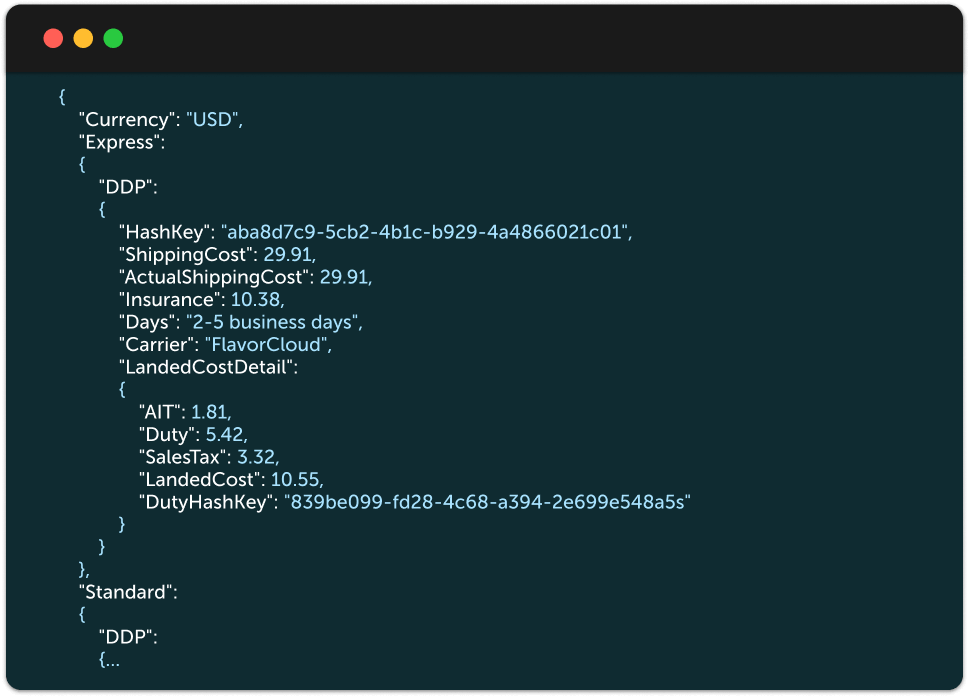
AI-powered classification, tariff calculations and landed cost calculations ensure pricing accuracy across all markets, managed real-time in every country.

White Space Market Intelligence
Country specific, AI-powered analysis of consumer behavior, market dynamics, competitor pricing with vertical insights from FlavorCloud data to grow your international share of wallet.

Margin
Protection
Turn international sales from a margin gamble into a growth engine with accuracy and predictability.

Automatic
Compliance
Stay compliant automatically. Our AI monitors regulatory changes and updates brokerage in real-time resulting in less than 1% customs delays.

Localized
Market Pricing
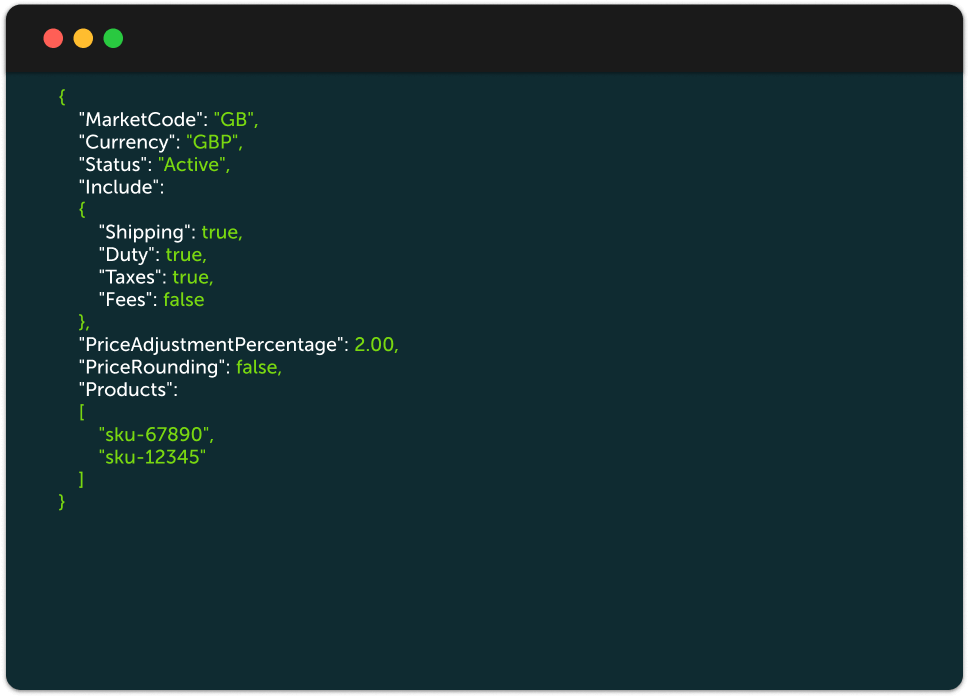
Grow international sales with product pricing fine-tuned based on market data and consumer insights. Deliver pricing optimized for each country inclusive of all landed costs.

Scalable Solutions
Enterprise-grade capabilities. Modular deployment.

3PL
Solutions
Full service 3PL international growth solutions that are plug and play and distribution across global markets.

Compliance &
Regulatory
Navigate complex international regulations with brokerage, compliance and customs automation.

Tariffs &
Trade
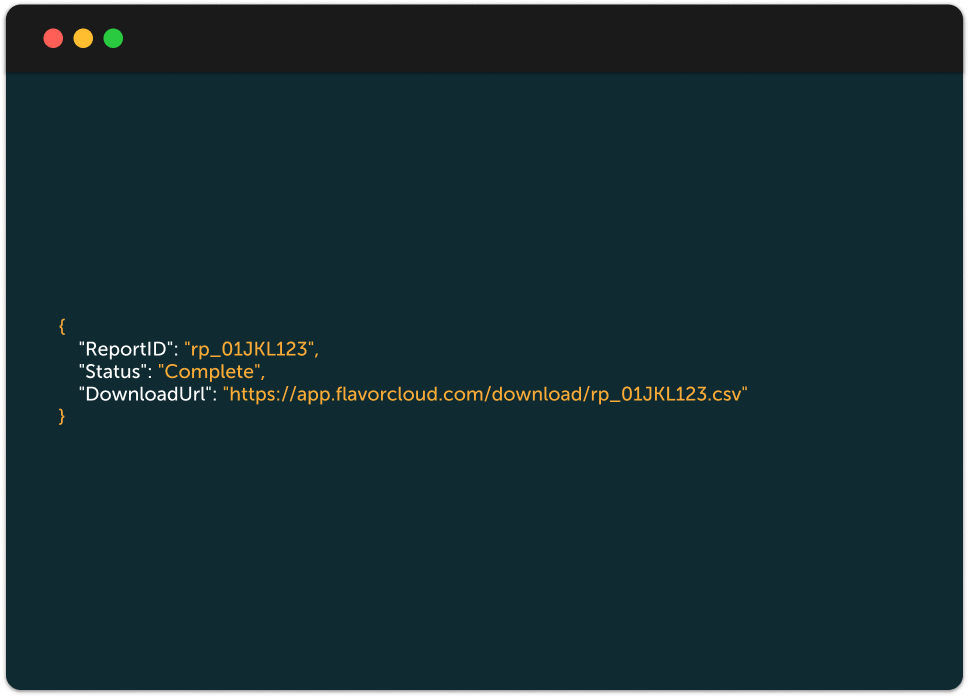
Trade AI services to keep country specific content up to date and guarantee landed costs.

Automated Classification
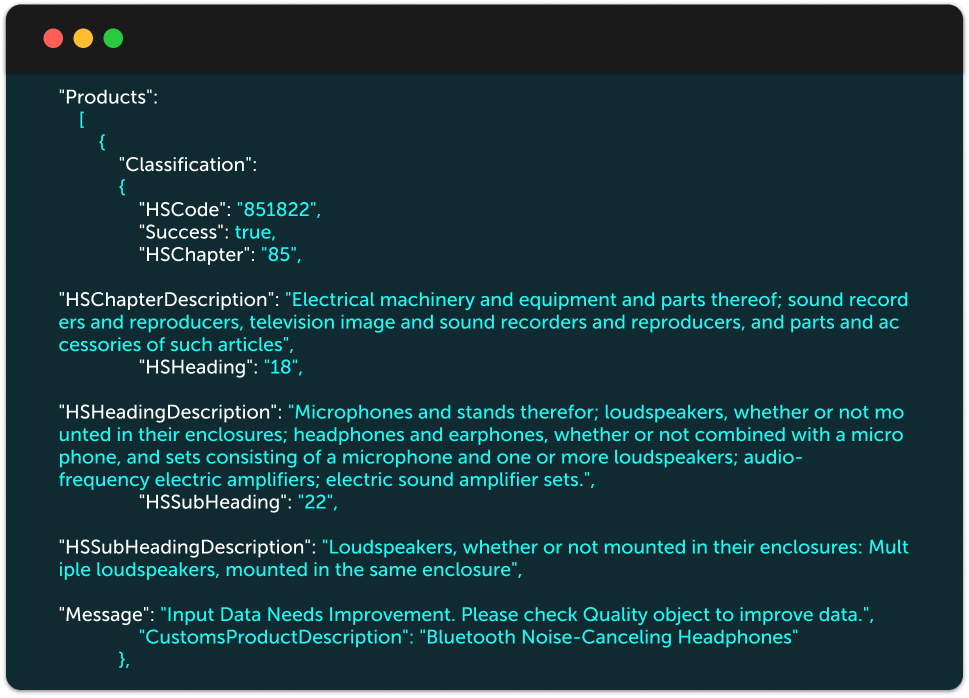
Classify products accurately at scale with AI-driven HS classification trained on real customs outcomes. Reducing misdeclarations, delays, and risk.






Smarter Decisions
Built for the
AI Era
FlavorCloud's AI-powered platform is the modern cross border commerce operating system for global scale. Our platform processes millions of data points daily, learning and adapting to enable smarter cross border commerce decisions.
 Real-time machine learning models
Predictive analytics engine
Automated decision-making
Continuous optimization
API-first architecture
Real-time machine learning models
Predictive analytics engine
Automated decision-making
Continuous optimization
API-first architecture
Real Results
Don’t take our word for it


Paul Jackson
Animal House - Co-Founder
"ShipBob’s international shipping via FlavorCloud allows us to ship DDP worldwide immediately and without hassle! Now, we can test all global markets and customers will receive their orders in a timely manner with no hidden surprises or fees. Since implementing DDP shipping we’ve seen a lift in revenue of almost 25%!"

Nathan Newman
Winky Lux - COO
"To have an app that installs quickly to give real time quotes based on country and service is really great and easy. I would say what it comes down to is cost, and the shipping costs are much lower than our old services. There's 2 services, standard and express and they quote out all of their carriers based on destination country."

Andy Pekala
Loop & Tie - Operations Manager
"The FlavorCloud support team and AMs have been fantastic to work with from the onboarding process through daily support of our shipments and continue to be a major asset in our growth as our needs expand. It’s great to see the team committed to our success. "

Andrew Lane
Onesies Downunder - Founder & CEO
"When Canada Post went on strike and when de minimis disappeared, we started to see everybody try to flail around and panic. What are we going to do? At Onesies, we are just sitting here like it is all good. FlavorCloud has got it all sorted. We can worry about other things."