

Your order appears in the Orders section of your FlavorCloud dashboard and you manage them directly in the FlavorCloud app.
Orders can be created in FlavorCloud in multiple ways:
- Automatically when an order is created in your online store if connected by the FlavorCloud Shopify App.
- Automatically when an order is create if connected by an API connection
- Manually by uploading a CSV.
Understanding the Order page
On the Order grid, information about the order is presented in a columned view in order to get a full pictures of the order. Information is available on:
- Order number
- Terms of Trade (DDP or DDU)
- Service Level
- Status
- Order Date
- Customer information
- Carrier
- Origin
- Destination
You can add or remove columns to personalize your Order grid. Additional columns include, shipping costs, landed costs, order value, order weight, transaction type and more.
The order grid can be filtered in many ways to bring you the information you need. Filter options include:
- Specific orders by tracking number, order number, customer name or email.
- Date range
- Fulfillment Status
- Origin Country
- Destination Country
- Service Level
- Terms of Trade
- Carrier
- Tracking Status
- Rated or Unrated
- Transaction Type
- Action Required
- AES Exception
- Split Shipment
- And more!
Fulfilling an order
If you prefer a guided tutorial, watch the step-by-step walkthrough below.
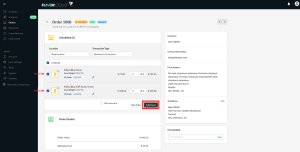
To fulfill an order, you can fulfill individually in the order details page.
Steps:
- In the FlavorCloud App, go to Orders
- Select the order to fulfill
- In the Order Fulfillment section, Select the items to fulfill
- Fulfill the order
- If the Order is already rated, select Fulfill Items
- If the order is not rated yet, click Rate Order. Select the Shipment Service and Terms of Trade. Next you will be presented with the shipping and duties, taxes and fees amount. To confirm, select Fulfill.
As the order is being fulfilled FlavorCloud is creating:
- An international shipping label
- Customs documentation (also sometimes referred to as “commercial invoice”)
- Carrier tracking number
The international shipping label and customs doc are electronically forwarded to the carrier. Learn more Managing your carriers.
Fulfilling orders in bulk
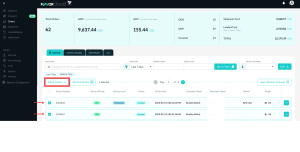
You can fulfill one or several orders by selecting the orders you would like to fulfill and picking the “Fulfill” option from the “Actions” menu at the top of the order grid.
Setting up a remorse period
To avoid cancellations or issues, you can set up a “remorse period”. A “remorse period” is a set amount of time customers can cancel their orders—no questions asked! This is a common safety net many online stores opt to offer their customers if they change their minds or want to add on to or change their orders.
FlavorCloud allows merchants to run stores their way. We support the “remorse period” by not fulfilling orders until you select “fulfill.” This allows the flexibility for your store to offer any amount of time for your store’s remorse period.
Read more about canceling an order.
Archive Orders
From the Orders Grid page you can archive order. This is an optional task, that can clean up already actioned or unactionable orders.
Steps:
- From the FlavorCloud App, move to the Orders section
- Select the orders to archive
- In the actions section, select Archive Orders.