
What is Consolidation
When working with certain carriers, consolidating an order is necessary. Consolidations are used with international carriers that don’t directly pick up parcels at your warehouse. Instead, a carrier such as UPS Ground or FedEx Ground will transport your standard shipments from your warehouse to the distribution hub of the international carrier. When at the distribution center, the individual parcels will be removed from the consolidation box, scanned by the international carrier, and sent to their destination. To do so, a shipping label must be produced for consolidation called a “Consolidation Label” or “Consol Label”.
The consolidation label will go on the larger box or shipping bag your individual international-labeled parcels are placed into. The consolidation label will have your warehouse address, and the destination will be the Standard Shipping Consolidation facility address.
Consolidation requirements
Consolidation is for Standard carriers only, not Express carriers, which will pick up individual packages at your location. This is typically the case for standard low-cost carriers offered by FlavorCloud like APC, it does not apply to express carriers such as FedEx or DHL, which will pick up individual packages at your location.
Creating a consolidation label
If you prefer a guided tutorial, watch the step-by-step walkthrough below.
Consolidation shipments can be created manually in the FlavorCloud app or via the FlavorCloud API. If you would like to know more about integrating with FlavorCloud using API, please get in touch with your account manager.
Steps to Manually Create a Consolidation in FlavorCloud
Step 1: Create consolidation
- Fulfill the orders in FlavorCloud
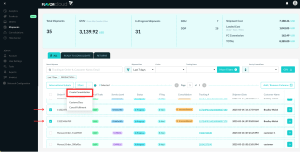
- Select “Shipments”, then select the fulfilled orders traveling to the same hub.
- In the Actions section, select ‘Create Consolidation’ button to have the system generate the consolidated manifest.
Step 2: Print First Mile Labels
IMPORTANT: To maintain accurate tracking information and visibility of what is being sent to the Global Mile carrier, the following steps must be completed separately for each master carton being sent:
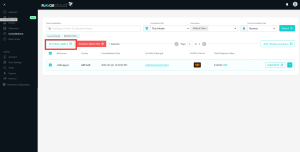
- Go to “Consolidations”
- Select the Consolidated Order
- In the actions menus select ‘First Mile Labels’ to print the first mile labels for the order
Step 3: Label Boxes
- Print individual labels for the shipments and label those boxes
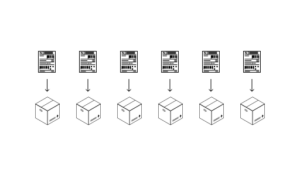
- Overpack individual shipments into a master consolidation
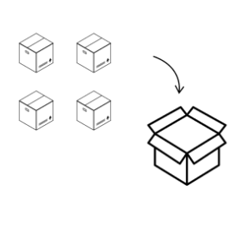
- Create a consolidation label and manifest, and label the master carton
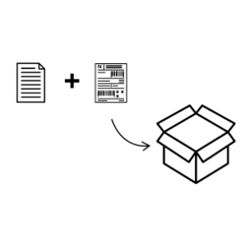
Step 4: Ship the Master Carton
If you already have UPS Ground or FedEx Ground coming to do your domestic pick-ups, they can take the master carton like any other package.
If you do not have a regular pick-up, you may either:
- Take the package to a package drop-off for the carrier.
- Schedule a pickup. You can consult this article on scheduling a package pickup if you would like more information.
Undoing a consolidation
It is not possible to undo a consolidation of shipments if in transit. You can include additional shipments in the box, provided an international shipping label and commercial invoice are included.
You can remove shipment from consolidations if the consolidation is not in transit.