
Managing Your Products
When you ship products internationally, there are a few product details you’ll need to provide for seamless international shipping. These details are used in the customs and compliance process and allow shipments to cross international borders without issue.
You can manage your products in your ecommerce platform, like Shopify, or directly in FlavorCloud. If you make changes in FlavorCloud the information will overwrite existing fields of what you have in your ecommerce platform in order to keep information up to date and consistent. If you are connected to FlavorCloud with an API connection, all information used in label creation and customs information comes directly from the API.
FlavorCloud has some fields that do not exist in platforms like Shopify, so we do encourage you to fill out your product information in FlavorCloud for all products you are shipping internationally.
The most important detail to review and make sure are included in your product information are:
- Managing HS codes for your products
- Managing Country of Origin for your products
- Manage your product weight
- Managing your Customs Description
- Managing your Classification of Dangerous Goods
Understanding the Products Grid Page
The Products page pulls in information from your ecommerce platform or from a CSV. You can filter by All, Active or Draft by selecting the tab at the top of the product grid.
The primary columns used to identify the product are:
- Title – The name of the product.
- Description – The product description, this is often the public facing product information.
- Status – An indicator if the product is currently live, indicated by either Active or Draft.
- Category – Labels assigned to a product to identify what kind of product it is.
- Source – The original source where the product information is pulling from.
Steps to upload products
You can upload products directly in FlavorCloud using a CSV. This allows you to include products that are not sourced from your API or ecommerce store.

- Download the Product Template from your Products Grid Page
- Fill in the spreadsheet with information about your products. The template columns need to remain in the order set by the Product Template.
- Click Upload CSV in your Products Grid Page and select the updated file from your device.
- Confirm with pressing Upload File.
If you are uploading information for existing products, the information in the CSV will create new products or produce an error. If you need to edit existing products, edit directly in FlavorCloud individually or by bulk action.
Steps to manage your products individually in FlavorCloud
If you want to manage your products and update information, you can access all information and update as needed to ensure cross-border success.
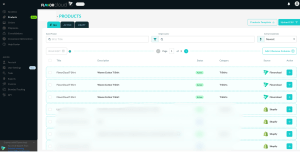
- Go to the FlavorCloud app
- From the menu, click Products
- Search for the product you would like to update using either SKU or Title
- Once found, click the Action arrow next to the product you would like to update. You will be brought to the product details page.
In the products details page, you can edit both General information and Pricing & details.
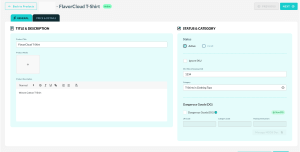
Under General you can update:
- Title – The name of the product.
- Product Media – Image or video of the product
- SKU – the Stock Keeping Unit of the product
- Description – The product description, this is often the public facing product information.
- Category – Labels assigned to a product to identify what kind of product it is.
- Classification – If the product is classified as Dangerous Good (DG)
- Status – An indicator if the product is currently live, indicated by either Active or Draft.
Under Pricing & Details you are able to edit:
- Price – The retail price of the product
- Weight – The weight of the product in kilograms, grams, pounds or ounces
- HS Code – the Harmonized System of classification required for exporting goods
- Customs description – A description of the product to allow customs to properly identify what you are shipping.
- Origin Country – Where the product was created. Not where it is shipping from.
- Material – the primary material the product is made from
If a product has variants, each variant will have a variant page where you can edit information per SKU. Therefore, if you have an item in Large, Medium, and Small and they have different weights and dimensions you can specify the information for each item.
In order to edit any field, select the appropriate field and add the updated information. After you are done, click Save. This information will update in FlavorCloud and if connected to an ecommerce site, it will update the information on the original product page as well.
Note: The Customs Details are very important to be accurate and up to date. This information is used to export your products across borders. If information is missing FlavorCloud dynamically classifies your products to ensure smooth and compliant cross-border trade.
Steps to manage your product in bulk in FlavorCloud
If you would like to edit multiple products at once you can use the Bulk Editor to make changes to multiple products at the same time.
- On the Product Grid page, click the checkbox next to all products you would like to edit
- Click Bulk Edit to move to the Bulk Editor
- Click Add/Remove Column to access the fields you would like to edit.
Available fields to edit are:
- Title – The name of the product.
- SKU – the Stock Keeping Unit of the product
- Description – The product description, this is often the public facing product information.
- Price – The retail price of the product
- Weight – The weight of the product in kilograms, grams, pounds or ounces
- HS Code – the Harmonized System of classification required for exporting goods
- Customs description – A description of the product to allow customs to properly identify what you are shipping.
- Origin Country – Where the product was created. Not where it is shipping from.
- Category – Labels assigned to a product to identify what kind of product it is.
- Classification – If the product is classified as Dangerous Good (DG)
- Material – the primary material the product is made from
- Status – An indicator if the product is currently live, indicated by either Active or Draft.
- Source – The original source where the product information is pulling from.