

FlavorCloud’s dashboards give you a wealth of data about your shipping and fulfillment operations. The various graphs and visualizations can help you identify trends, pinpoint areas for improvement, and track progress over time. However, sometimes you need to dive deeper into the data and perform custom analyses or comparisons.
Export format
Different pages will have different information that can be exported and will be downloadable in the most accessible format. The various export types, sources, and formats will include:
| Type | Pages | Export Format |
| Orders | Orders | CSV |
| Shipment | Shipments | CSV |
| Invoices | Invoices | PDF, Excel |
| Orders + Shipments | Analytics | CSV |
It is important to note that the Analytics page creates an export that combines information from your orders and shipments sections, based on the filter parameters you have set. This is not a distinctly different export than found on the Orders and Shipments pages.
Steps
- In the FlavorCloud Admin, go to the page you would like to export data from. See Export format for more information on the specific pages and export types available.
- Sort and filter the data by the parameters you would like to isolate. Some options are:
- Date
- Fulfillment Status
- Origin Country
- Destination Country
Different reports will have different parameters that you can set.
3. Click the export icon that looks like a down arrow with a line underneath.
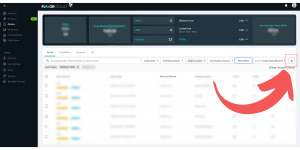
When you click export, a notification will come up that the export is starting to process and another when the export is complete. This can take a few minutes depending upon the size of the export. The export notification will include your Export ID to be able to distinguish between multiple exports.
4. After you receive the notification that says the export is complete, go to the Exports page. 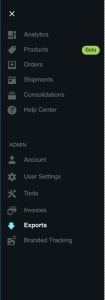
5. Click Download to receive a file of the export you created. Identifying the correct export can be done through the export ID that is shown to you in the notification and the attributes (date range, export type, etc.).
Export files can be downloaded for 6 months once they are generated. After that time, a new export file will need to be made. You will be notified that the export has expired if the download is outside of the 6-month timeline.
Alternate data tracking
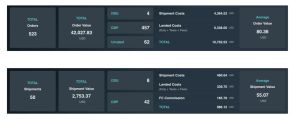
The Analytics Dashboard in FlavorCloud can also help you track and analyze key metrics related to your orders and shipments and make data-driven decisions to optimize your business processes.
You can also find key data for your FlavorCloud account on the Order Grid and Shipment Grid.
Use cases for exporting data
You can create custom reports and comparisons that fit your specific needs by exporting the data for a particular date range and time grouping. For example, you could export data for a specific country and compare it to data for all other countries to see if there are any notable differences in transit times or landed costs.
Additionally, you can use the CSV data to perform more advanced statistical analyses or visualizations using software tools like Excel, R, or Python. This can be especially helpful for businesses with unique data analysis needs or who want to dig deeper into the data.
The export feature provides the flexibility and customization options to fully leverage the data available within FlavorCloud’s dashboards. Whether you want to perform custom analyses, compare data, or conduct advanced statistical analyses, the export feature is a valuable tool for unlocking the insights hidden in your shipping and fulfillment data.
Once you have identified areas for improvement, you can use FlavorCloud’s conversion optimization tools to create business rules tailored to your specific needs. By setting rules that trigger discounts or markups based on order value, service level, or destination country, merchants can incentivize customers to complete purchases and increase revenue.
We recommend merchants run experiments to test the impact of these business rules on relevant metrics such as AOV, conversion rates, and shipping costs. By analyzing the data from these experiments, merchants can determine which rules positively impact revenue and which may need to be revised or scrapped. Using a data-driven optimization approach, you can drive incremental revenue growth using FlavorCloud’s tools.