

Creating a sample or gift order
There are many reasons why you may need to create a sample order, including:
- Sending samples to customers or influencers
- Sending gifts to customers or non-profits
- Sending replacements to customers for lost items or returned packages
All these scenarios have in common that there is no commercial value associated with the items, and the order is not a sale. However, even though the buyer is not paying for the item, the price needs to be included on the commercial invoice to go through customs without issue.
For nearly all countries, gifts and samples fall under a very specific customs guidance. To qualify for an exemption from duties and tax, they would need to be sent from an individual to an individual. A merchant sending to a buyer does not qualify.
Therefore a sample or gift will incur taxes, duties and fees at customs in most cases. We suggest you ship via DDP in order for the shipment to arrive at the destination without the buyer needing to take any action. It’s not usually a great experience if they have to pay to receive a gift or sample!
FlavorCloud will mark the shipment as a “Gift” automatically if the total order value is 0$. Be sure to include the original product value in the order for proper customs documentation to be created.
Option 1: Discounting at the Order Level
The first option to classify a shipment as a sample order is manually discounting the items at the order level in Shopify. Here is how you do this:
Step 1: Create Order & Add Discount
Once you have created the order,
- Click on the “Add discount” on the order.
- Add 100% as the discount value and
- Click “Apply.”
The result will be an order value of zero.


Step 2: Select free shipping
- select or create a custom rate name (for example, International DDP Shipping).
- Set the rate to free shipping ($0).
- (If applicable) Before marking the order as paid, confirm with your 3PL that this rate name is mapped to FlavorCloud DDP in their WMS or automation rules.
⚠️ If the rate name isn’t mapped, the order could ship DDU and the recipient would be charged duties and taxes on delivery.
When everything looks good, mark the order as paid to create a fulfillable order.
Step 3: Rate and Fulfill the Order
Once the order is completed in Shopify:
- Go to your FlavorCloud dashboard.
- Select the order by clicking on the order number. This will open the order detail screen.
- Select “Rate Order” to obtain shipping rates.
Once you have rated and fulfilled the order, you can ship it. FlavorCloud will automatically:
- identify the shipment as a sample or gift order,
- mark the items as a sample or gift order on the commercial invoice.
Option 2: Discount Code at Checkout
The second option to classify a shipment as a sample order is using Shopify’s “Discount” feature.
Step 1: Create a discount code
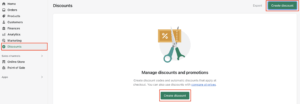
- Select the “Discount” tab in your Shopify store and click on the “Create Discount” button.
- Enter a name for the discount code – such as “Sample” or “gift,”
- Select “Percentage” in the “Type” section
- Add 100% in the “Discount Value” field
- Save your selections.

Step 2: Apply Discount Code
- Go to your online store,
- Select the items you would like to have included in your sample order
- Navigate to the checkout area
- Enter the name of the discount code in the appropriate field
- Click Apply
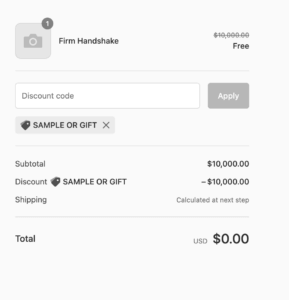
Once you click “Apply,” the discount will be added to the order at checkout. If you select 100% as the value of your discount, the order value will be $0.
Add the contact details and address of the sample order’s recipient, select your shipping service level (Express, Standard), and complete the order. Again, we suggest using DDP to avoid the recipient having to pay duties, taxes and fees at delivery!