

Setting up Loop Returns with FlavorCloud
FlavorCloud integrates with Loop Returns as a third-party label provider. By connecting your FlavorCloud account to Loop Returns, you can automatically generate return shipping labels through the Loop platform.
This guide walks you through the required setup:
- Creating webhooks
- Generating an API key
- Configuring return policies
Step 1: Create webhooks
- In your FlavorCloud account, go to API and copy your Customer Key. You will need this to build your webhook URL.
- In Loop Admin, navigate to Returns management > Tools & integrations > Developer tools.
- Click Create webhook and set up the following three webhooks:
- Webhook 1
- Event: Label request.issued
- Response: Label request
- URL: https://loop.flavorcloud.com/api/customers/{flavorcloud-customer-key}/webhooks
- Webhook 2
- Event: Label request.cancelled
- Response: Label request
- URL: https://loop.flavorcloud.com/api/customers/{flavorcloud-customer-key}/webhooks
- Webhook 3
- Event: Return created
- Response: Return
- URL: https://loop.flavorcloud.com/api/customers/{flavorcloud-customer-key}/webhooks
- Webhook 1
Example:
If your Customer Key is 12345, your webhook URL will be:
https://loop.flavorcloud.com/api/customers/12345/webhooks
4. After creating all three webhooks, copy your Webhook Secret and share it securely with FlavorCloud.

Step 2: Generate an API key
- In Loop Admin, go to Returns management > Tools & integrations > Developer tools.
- Scroll down to API keys and click Generate API key.
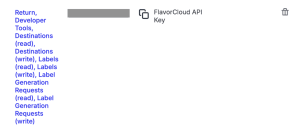
- Select the following scopes:
- Return
- Developer Tools
- Destinations (read, write)
- Labels (read, write)
- Label Generation Requests (read, write)

- Give the key a descriptive name (for example: FlavorCloud API Key).
- Click Generate, then copy the key and share it securely with FlavorCloud.
Step 3: Configure return policies
To enable FlavorCloud return labels in Loop:
- In Loop Admin, go to Returns management > Policy settings > Return policies.
- Create a new return policy or edit an existing one.
- Ensure Generate labels is toggled on.
- Under Label provider, select External connector.
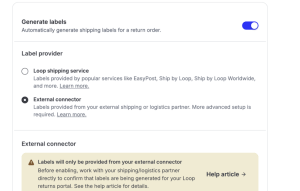
This will route return label generation through FlavorCloud for the countries you configure.
Here is an example of a set up rule for returns from the United Kingdom.

Step 4: Set up your Loop Policies
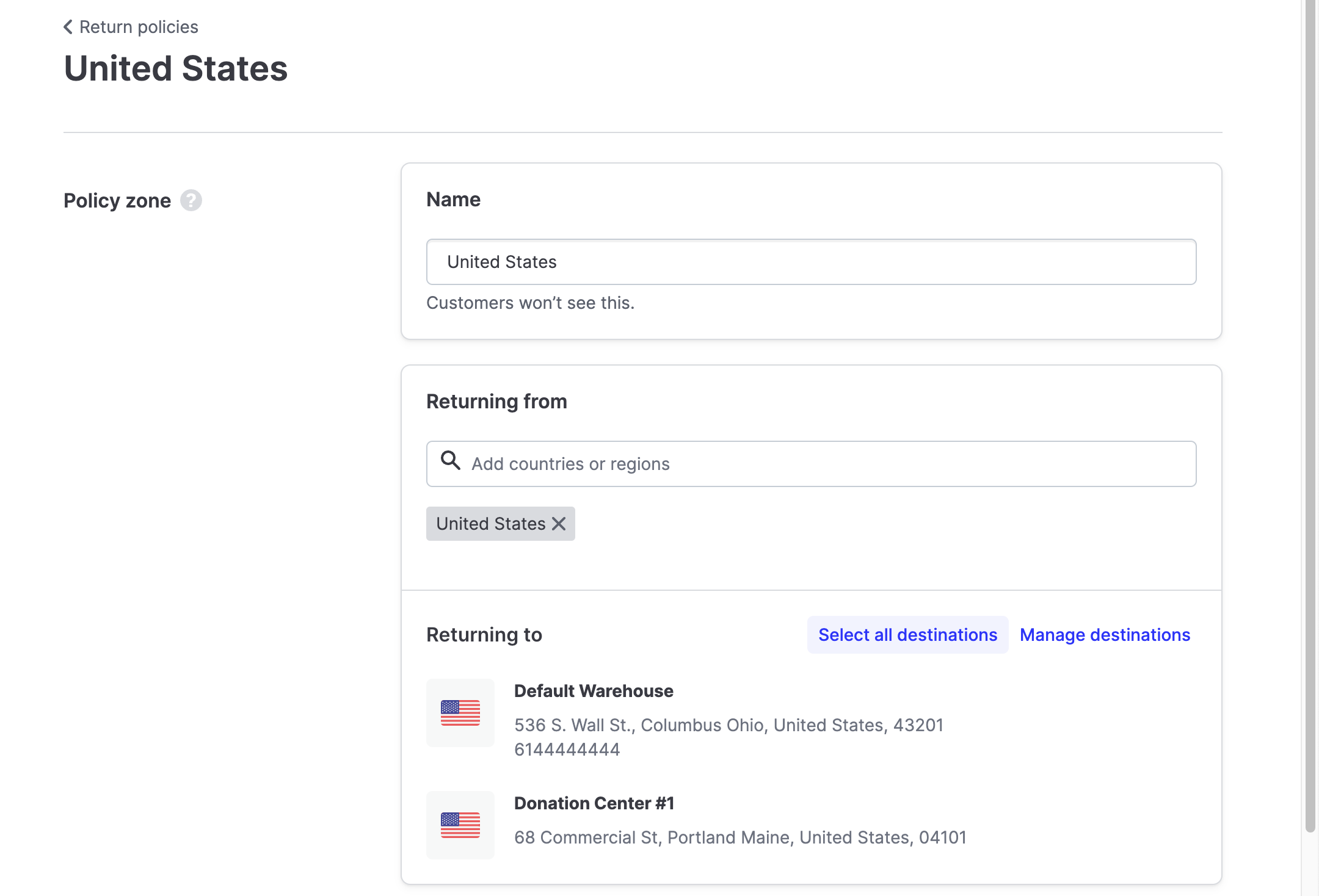
In the policy section you can create policies based on where you are receiving returns. For example, you can set up a return policy for the United Kingdom. In those marketed you can set up where the Return is meant to go back to in the Destination field, and Destination Address. These are necessary for an active policies.
Merchants can configure the following policy zone settings:
- Name: The name of the policy (for example, “Domestic” for domestic shipping or “Canada” for Canadian shipping).
- Returning from: Select one or more countries or regions. The return policy will apply to all customers in the selected countries or regions.
- Returning to: The destination to which returns will be sent.
- Generate labels: Enable this setting to generate shipping labels for customers automatically. By default, this setting is disabled.
- And more!
We recommend setting up the policy so you are able to review before committing to the return to make sure you are not losing on your margins with the cost of the return label. In order to estimate labels, you can use the rate quote tool in FlavorCloud for estimates.
Read more on Loop at Return Policy Settings.
Important: Understanding return shipping and landed costs
-
All FlavorCloud return labels use DDU Express as the default rate.
-
This is the industry standard for international returns.
-
The customer or merchant will pay applicable landed costs on delivery (duties, taxes, or fees charged at import).
-
-
DDP (Delivered Duty Paid) is not available for returns.
-
Duties and taxes cannot be prepaid on return shipments.
-
-
In some cases, FlavorCloud can apply duty avoidance.
-
If the original order duties were already paid and the goods are being returned, you may avoid some landed cost items at import clearance in a process called duty avoidance.
-
Duty recovery (drawback) may be possible in specific cases — contact your FlavorCloud representative for more information.
-
Step 5: Admin and portal experience
Once setup is complete:
- Returns created with FlavorCloud labels appear in Loop Admin like any other return.
- You can view return details (event history, destination address, tracking number) directly in the FlavorCloud app.
- Labels and documents can be sent to customers by email.
Learn more about generating and managing returns in FlavorCloud.
Tip: Keep your Customer Key, API Key, and Webhook Secret secure. If any credentials change, you will need to update them both in Loop and FlavorCloud to avoid disruptions in return label generation.
Troubleshooting & FAQs
Why don’t I see the “External connector” option when editing return policies?
Make sure the API key has the correct scopes enabled. Missing “Labels” or “Label Generation Requests” permissions can prevent FlavorCloud from appearing as a provider.
My webhook URL isn’t working. What should I check?
- Verify that your Customer Key is correct and matches the value in your FlavorCloud account.
- Confirm that you’ve entered the full URL including /api/customers/{customer-key}/webhooks.
- Ensure you’ve created all three required webhooks (label.request.issued, label.request.cancelled, return.created).
Labels aren’t generating in Loop. How do I fix this?
- Confirm that your API key and Webhook Secret were shared with FlavorCloud.
- Make sure the order is eligible for a return (status = Delivered, with items selected for return).
- Check if the country is included in your configured return policies.
What happens if I regenerate my API key or Webhook Secret?
If credentials are regenerated in Loop, you must update FlavorCloud with the new values immediately. Otherwise, return label requests will fail until the integration is re-authenticated.
Can I test my setup before going live?
Yes. We recommend creating a test return in Loop once webhooks and API keys are configured. Confirm that a FlavorCloud label is generated and attached to the return.