

Shipping labels ensure that your shipments reach their destination accurately and on time. They can be edited and actioned within your FlavorCloud App to ensure accuracy and avoid issues with delivery.
Permitted Letters and Languages
Carriers require that all international shipping labels use alphabet letters for names and addresses. Characters from languages such as Mandarin/Chinese, Korean, or Arabic are not accepted.
For Shopify Plus merchants, FlavorCloud recommends using Address Validator to disable non-Latin characters.
Editing Order Information
Editing the Origin Address
The sender address on shipping labels is automatically pulled from the Location section in your FlavorCloud account settings. By default, this is set to your account address.
Steps to change the origin shipping location:
- In your FlavorCloud App, go to Account > Locations
- Select if you will Import from Shopify or Add address
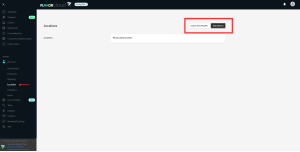
If you select import from Shopify, it will pull location information from you Shopify account. Read more on their Help Center on Setting up locations.
If you select Add address you can manually add an address.
Editing the Destination Address
The destination address is automatically populated from your online store’s orders and is included in the shipping label and customs documents.
To edit the recipient’s address before fulfillment:
- Click on the order you want to edit.
- Click the Edit button in the To address section of the order details screen.
- Update the address and click Save.
Printing Shipping Labels
Printing a Single Shipping Label
Once an order is fulfilled:
- In the Order section, select the order.
- Select International Label
- The label is automatically generated, and can be printed with your printing setup.
If this is not available, you will need to rate and fulfill the order first.
Printing Labels in Bulk
To print multiple labels at once:
- Go to Shipments section.
- Select the shipments whose labels you want to print.
- Click International Labels.
Tip: You can also print first-mile labels and customs documents by selecting a different bulk action under More Actions.