

Accurate product and packing material weights are critical in cross-border logistics, allowing FlavorCloud to calculate cross-border costs rapidly and precisely at checkout. As a best practice, we encourage our merchants and partners to periodically review and update these weights to maintain accuracy in calculated international shipping costs.
Weight at Checkout vs. Weight at Fulfillment
FlavorCloud automatically calculates the total shipping cost of your international orders at checkout. This calculation considers the weights of individual products and quantities in the cart alongside the weight/dimensions of your packaging materials. The quote for shipping costs, customs, duties, and taxes is built in real-time, using data from your ecommerce platform.
Inaccurate weights can lead to shipping delays and additional charges. Therefore, ensuring that the weights and dimensions align with the actual values is crucial.
When the carrier scans your package, they determine the actual weight and shipping rate, which FlavorCloud settles. If the actual rate surpasses the estimated one at checkout, FlavorCloud will issue a reconciliation invoice for the difference.
Setting Default Package Information in FlavorCloud
You can set a default/standard shipping package dimension & weight in FlavorCloud. This measure acts as a failsafe to calculate shipping rates if FlavorCloud does not receive information from your store. Please note that this is not a substitute for accurately inputting this information in your store.
While these values are typically set during onboarding, we urge you to review this information periodically.
On the lefthand sidebar, select Account.
Under Account:
- Choose “Shipping”
- Scroll down to the “Average Package Settings” section.
- Enter the accurate Length, Width, Height, and unit of measure.
- Enter the accurate weight and unit of measure in the “Weight when empty” text box.
- Click Save in the lower right part of the card.
Updating Weights in your App
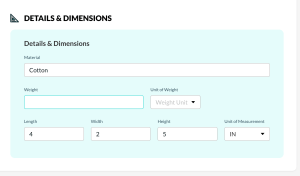
You can update the weights and dimensions of your products directly in the FlavorCloud App. Go to your product details page and enter the weight, length, width and height of your product.
DIM Weight
FlavorCloud uses the greater of the actual or dimensional (DIM) weight at fulfillment. The DIM weight is calculated by multiplying a package’s length, width, and height and dividing by the DIM factor (for example, 166 for international shipments).
Length x Width X Height (in inches) / 166 (DIM factor)
For assistance, you can use FedEx’s dimensional weight calculator.
Updating Weights in your Store
Shopify has instructions in their Help Center on Product Details.
BigCommerce has instructions in their Help Center on Product Overview.
Working with a 3PL
If partnered with a 3PL, ensure your product information matches the 3PL system and your store. Discrepancies can lead to inaccurate rates at checkout.
Support
For any questions about updating weights, setting up your FlavorCloud account, or anything else, please contact us at support@flavorcloud.com.