

Overview
The Rate Quote Tool in the FlavorCloud App allows you to generate instant international shipping quotes and create shipments directly from those quotes. It’s designed to help merchants quickly compare service options, estimate landed costs, and manage ad-hoc shipments without needing to process an order through checkout.
You can use the tool to receive both Delivered Duty Paid (DDP) and Delivered Duty Unpaid (DDU) rate quotes for Standard and Express service levels.
Accessing the Rate Quote Tool
You can access the Rate Quote Tool directly in your FlavorCloud App:
Admin → Tools → Rate Quotes
Once opened, you’ll see three panels that guide you through building your quote. On smaller screens, these panels will stack vertically for easier viewing.
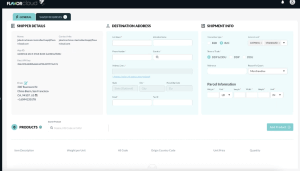
Getting a rate quote
- Set your From address
Your default ship-from address will automatically appear based on your account settings. You can edit this field directly in the Rate Quote Tool if you need to quote from a different warehouse or fulfillment location. - Add the destination address
Enter the consignee’s address details or select a saved contact. Make sure the destination country and postal code are accurate for valid rates. - Add products
You can add products in two ways:
- Select a product variant from your connected store.
- Enter a custom product by clicking the “Add Product” button.
Select the products you want to include in the quote from your connected store. You must select a product variant, not just the base product, to ensure correct classification, value, and landed cost calculations.
If a product has only one variant, it will be automatically selected.
Missing or incomplete product information (for example, HS code, country of origin, or weight) may prevent accurate rate results.
- Enter shipment details
Specify the parcel’s dimensions, weight, and quantity. The Rate Quote Tool uses these values to calculate optimized cross-border shipping options. - Select your service type
Choose from Standard or Express service levels. - Generate the quote
Click Get Quote to receive available rate options. The system will return both DDU and DDP results when available, including: - Service Level
- Terms of Trade (DDU/DDP)
- Estimated Transit Days
- Duties, Taxes, and Fees (for DDP only)
- Total Landed Cost (for DDP only)
If no rates are available for the given parameters, you’ll see a message indicating that no valid rate exists.
Managing rate quotes
All rate quotes are automatically saved in your account. Any user within the same merchant account can view and reuse quotes that have been created.
You can return to a saved quote at any time to review, edit, or regenerate a shipment. If you’re managing multiple accounts, avoid generating quotes under a customer’s account unless it’s intentional, since they will appear in that customer’s Rate Quote history.
Creating shipments from quotes
Once you’ve received a rate quote, you can move directly into shipment creation. Click Create Shipment beside the rate you want to use to generate a shipping label and initiate fulfillment. The shipment details, including product, weight, and address data, are carried over automatically from the quote.
This workflow is ideal for generating B2B or test shipments, influencer sends, or any ad-hoc fulfillment needs where checkout data isn’t available.
Understanding your rate quote
| Field | Included in DDU | Included in DDP |
| Service Level |  |
|
| Terms of Trade | |
|
| Estimated Transit Days | |
|
| Duties |  |
|
| Taxes | |
|
| Fees | |
|
| Total Landed Cost | |
|
Tips for best results
- Always select a product variant to ensure correct landed cost calculations.
- Review your product data in your connected store (HS codes, values, weights, and origin) before running quotes.
- Quotes are saved at the customer account level, so coordinate internally to avoid duplicates.
- If you notice any layout or spacing issues in the tool, refreshing the page typically resolves display inconsistencies.
- Insurance functionality will be added to the Rate Quote Tool in an upcoming release.
Related articles